How to Update Your Game
Your Pedretti pinball machine can be updated in two ways:
- Online Update – directly through an Internet connection.
- USB Update – using a USB drive containing the software update file.
Follow the steps below to access the update options.
Step 1 – Open the Coin Door
With the game powered on, open the coin door.
Use the service buttons located inside the coin door to access and navigate through the game menu.
When the coin door is open, the display may show “COIN DOOR OPEN – INTERLOCK DISABLES PLAYFIELD HIGH POWER.” This is normal.
Step 2 – Enter the Service Menu
Enter the service menu.
From the MAIN MENU, select:
2026 REMAKE MENU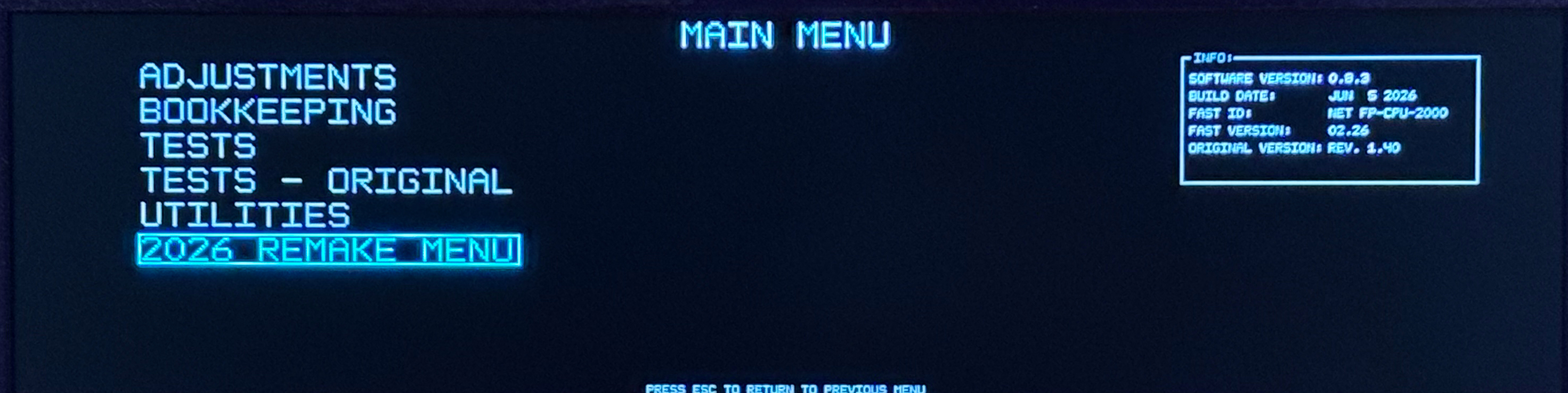
Press ENTER to confirm.
Step 3 – Open the Network Menu
Inside the 2026 REMAKE MENU, select:
NETWORK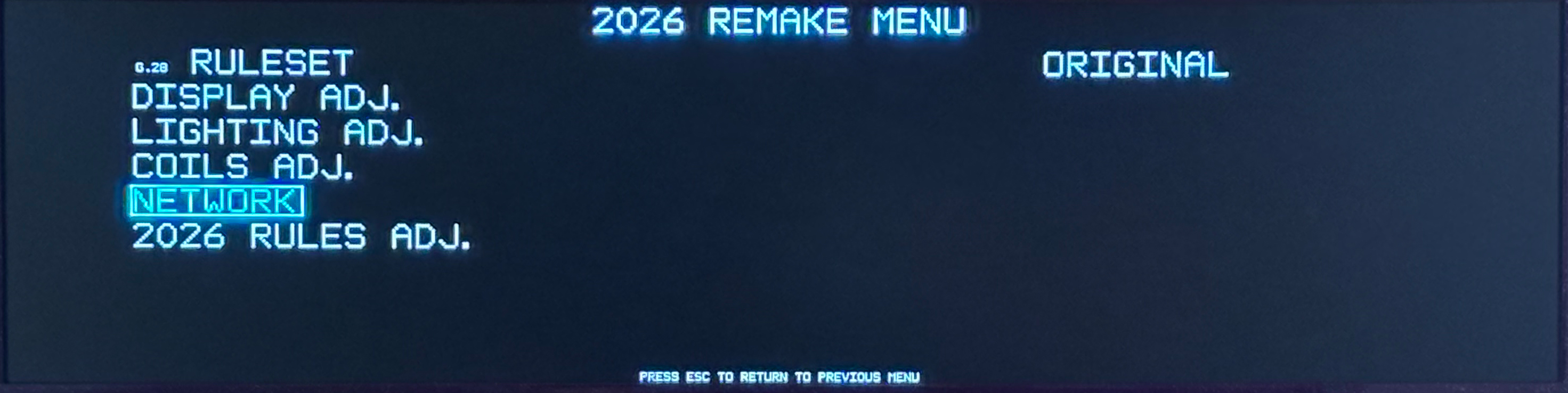
Press ENTER.
The Network menu includes the update options:
- SET UP WI-FI
- ONLINE UPDATE
- UPDATE FROM USB DRIVE
- COPY LOGS TO USB DRIVE
Option 1 – Online Update
Before starting, make sure the game is connected to the Internet.
If necessary, use SET UP WI-FI from the Network menu to configure the connection or connect your game to internet via LAN cable.
Select:
ONLINE UPDATE
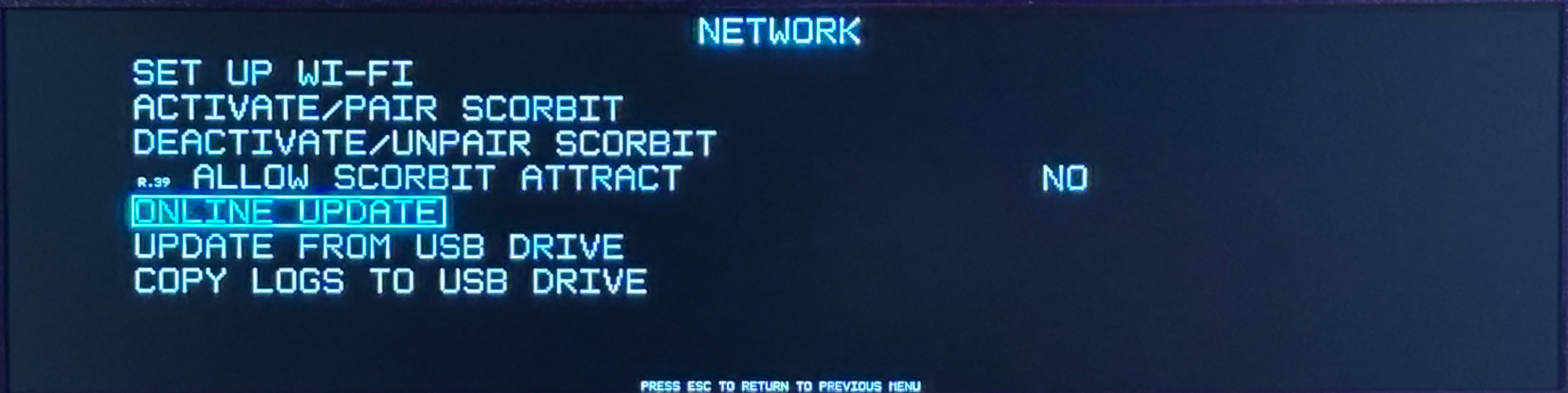
and press ENTER.
The game will automatically check whether a new software version is available.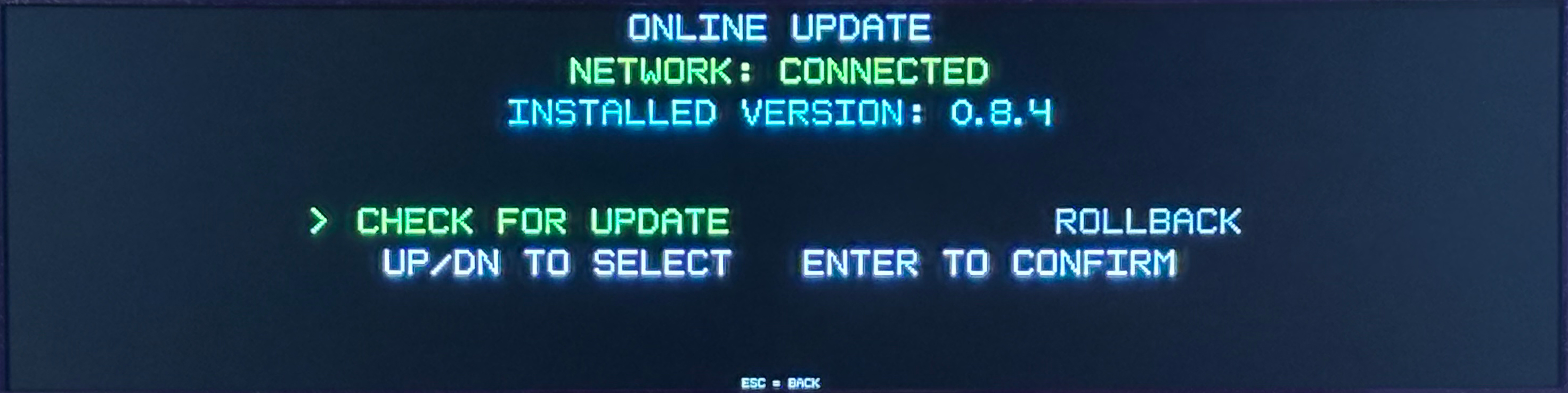
and press ENTER.
The display will show:
CHECKING FOR UPDATE...

If an update is available, follow the instructions shown on the screen to start the installation.
Important
Do not switch off the game while an update is being installed.
Allow the entire update process to complete before using or restarting the machine.
Option 2 – Update from USB Drive
First, prepare the USB drive with the correct software update file.
Insert the USB drive into the USB connection inside the game cabinet. You can find the USB extension cord inside opening the coindoor on the right side.
Return to:
2026 REMAKE MENU → NETWORK
Select:
UPDATE FROM USB DRIVE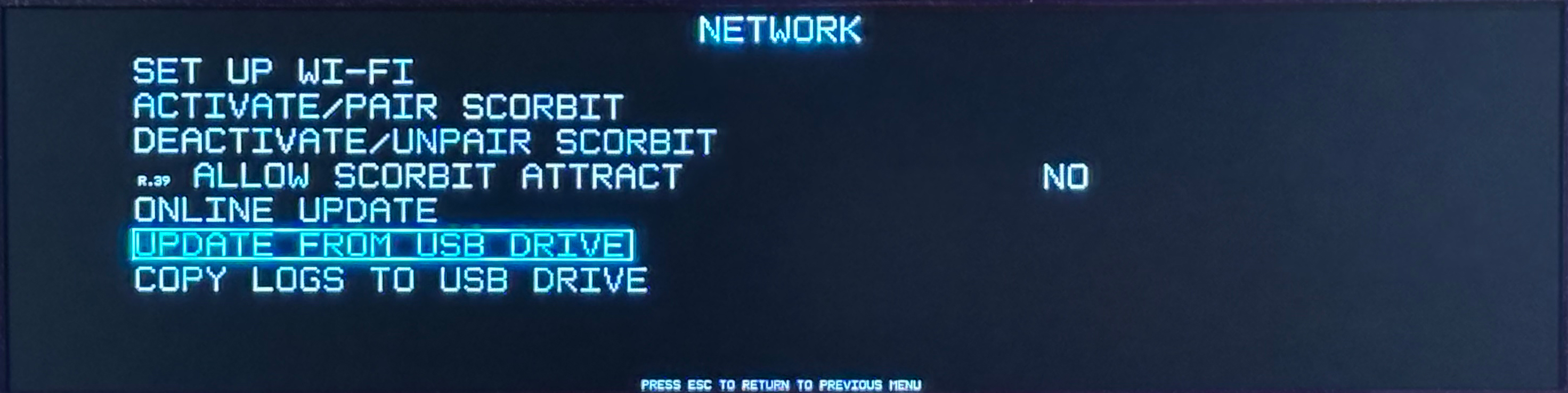
and press ENTER.
A warning will appear before the update begins.
The game warns that an incomplete update may corrupt the software and could require the SD card to be re-imaged.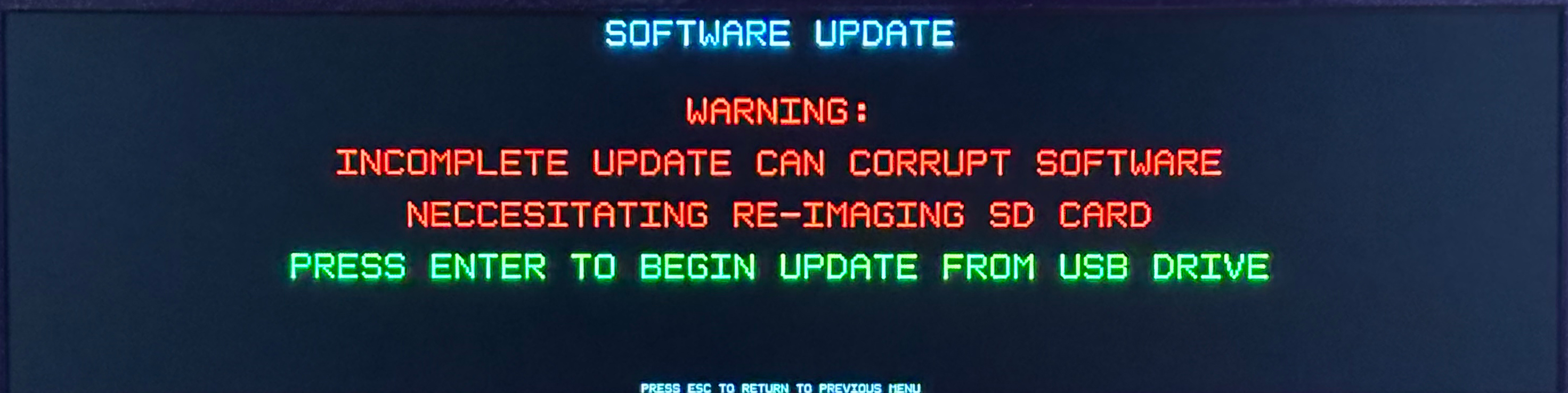
When you are ready to proceed, press:
ENTER
to begin the update from the USB drive.
Important
Do not turn off the game or disconnect the USB drive while the update is in progress.
Wait until the complete installation procedure has finished.
Update Menu Quick Reference
MAIN MENU
→ 2026 REMAKE MENU
→ NETWORK
→ ONLINE UPDATE
or
MAIN MENU
→ 2026 REMAKE MENU
→ NETWORK
→ UPDATE FROM USB DRIVE
Andrea DM
Customer Support Guru
Was this article helpful?
That’s Great!
Thank you for your feedback
Sorry! We couldn't be helpful
Thank you for your feedback
Feedback sent
We appreciate your effort and will try to fix the article