This guide explains how to write the game image onto the SD card using BalenaEtcher. Please follow each step carefully, especially when selecting the target SD card.
Important: flashing the image will erase the selected SD card. Before pressing Flash, make sure you have selected the SD card from the game and not another drive connected to your computer. |
Before you start
- A Mac computer with internet access.
- The SD card from the game, connected to your Mac through an SD card reader or adapter.
- The game image downloaded and unzipped on your computer.
- BalenaEtcher installed on your Mac.
Step 1 – Download and install balenaEtcher
Download and install the balenaEtcher desktop application from: https://etcher.balena.io
We recommend using the installed desktop application rather than the online version, as it is usually more reliable for this procedure.
Step 2 – Download the game image
Download the game image from the following link: GAME CODE IMAGE
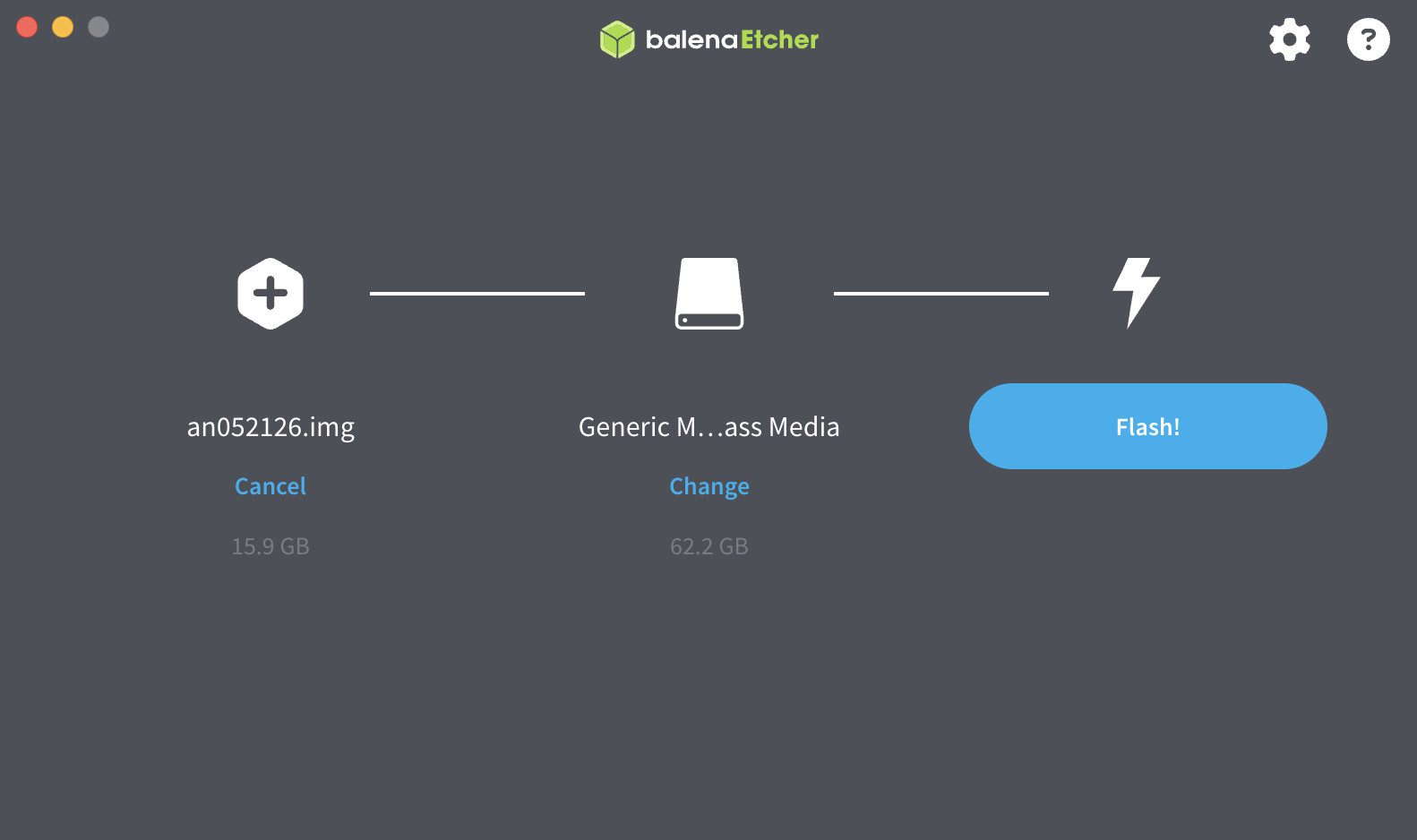
The downloaded file is a .zip archive. Once the download is complete, unzip the file. The final image file should appear as: an052126.img (This is an example, numbers can change)
The file may appear similar to the example below, with a size of approximately 15.93 GB.

Step 3 – Open balenaEtcher and choose the image file
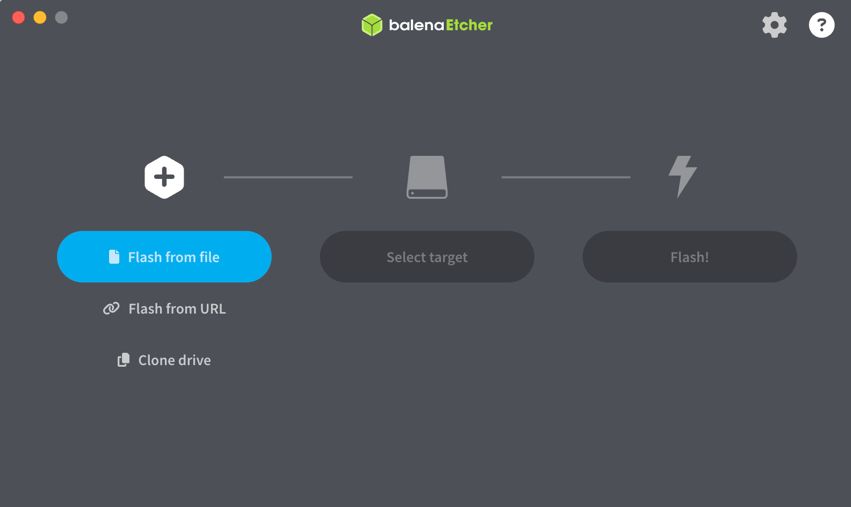
Open balenaEtcher and click Flash from file. Then select the unzipped game image file, an052126.img.
Step 4 – Connect and select the SD card
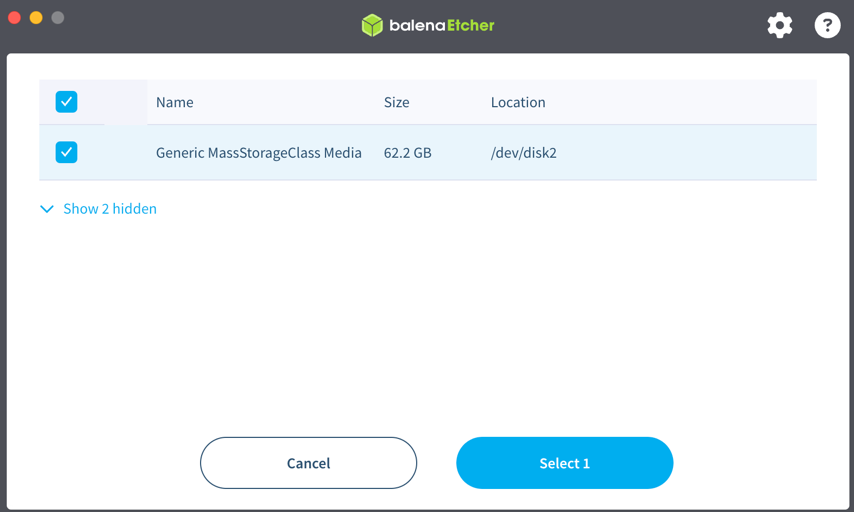
Connect the SD card from the game to your Mac. In balenaEtcher, click Select target and choose the SD card you just connected.
Before confirming, double-check the drive name and capacity. In the example below, the selected SD card appears as “Generic MassStorageClass Media”. Your device name may be slightly different.
Step 5 – Flash the SD card
Once both the image file and the target SD card are selected, click Flash! to write the game image onto the SD card.
macOS may ask for your administrator password during this step. Do not remove the SD card while the flashing or validation process is running.
Step 6 – Safely remove the SD card and reinstall it in the game
When balenaEtcher confirms that the process is complete, safely eject the SD card from your Mac. Then remove the SD card from the reader and install it back into the game.
Was this article helpful?
That’s Great!
Thank you for your feedback
Sorry! We couldn't be helpful
Thank you for your feedback
Feedback sent
We appreciate your effort and will try to fix the article