To use online updates, your game must first be connected to the Internet.
*** Wifi Connections require a password to connect ***
Step 1 – Open the Network Menu
Enter the Service Menu and go to:
2026 REMAKE MENU → NETWORK → SET UP WI-FI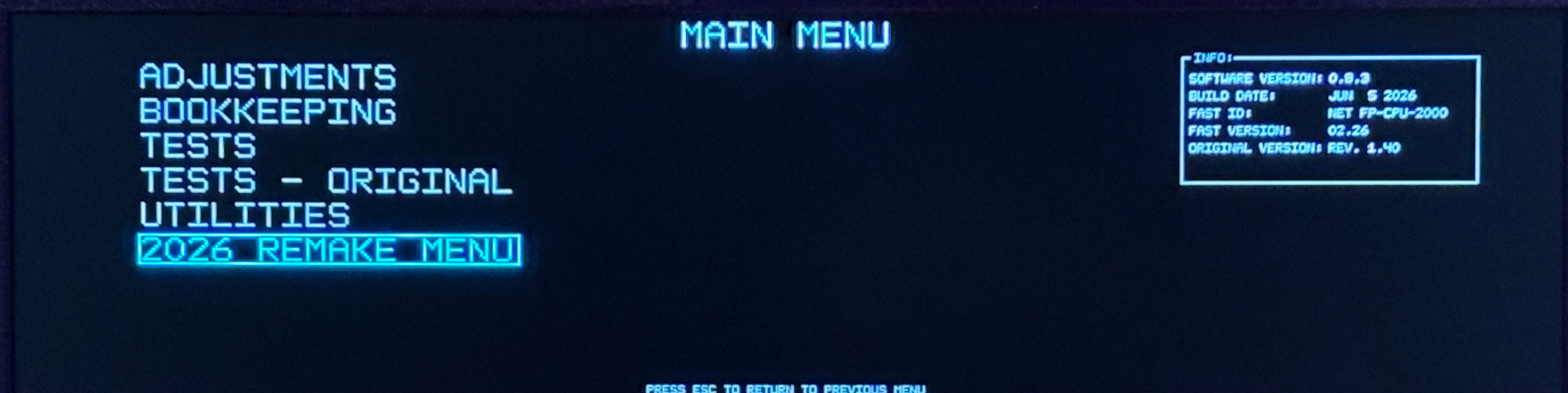
Press ENTER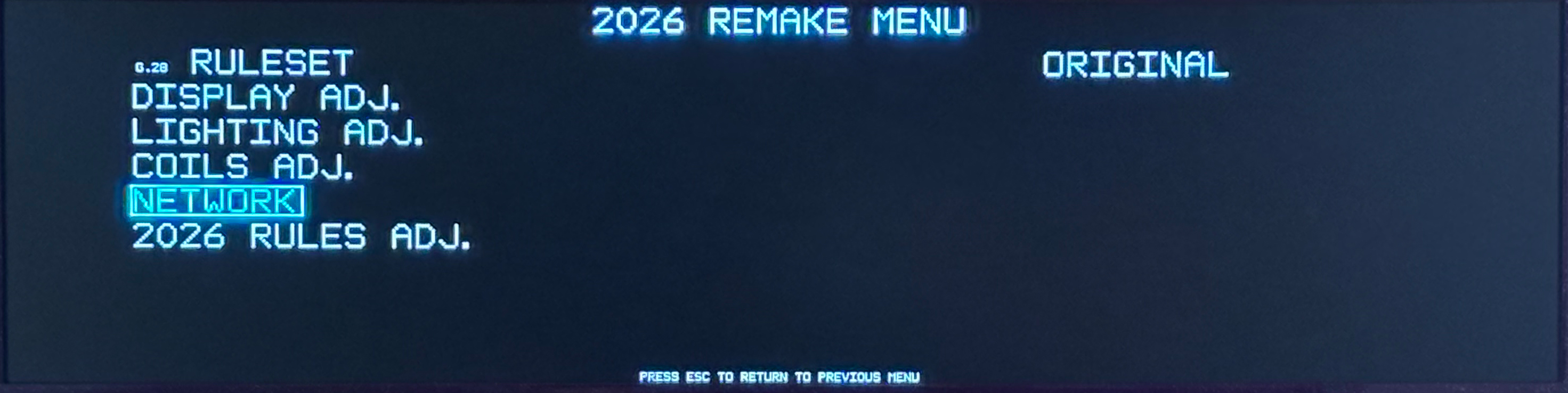
Press ENTER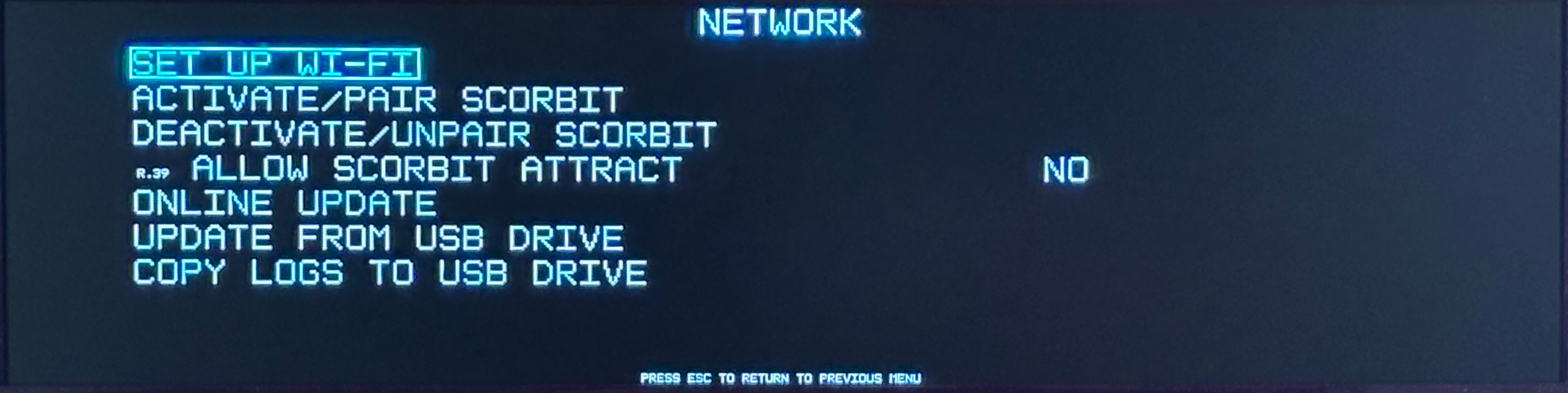
Press ENTER to open the Wi-Fi setup.
Step 2 – Select Your Wi-Fi Network
The game will scan for available Wi-Fi networks and display them on the screen.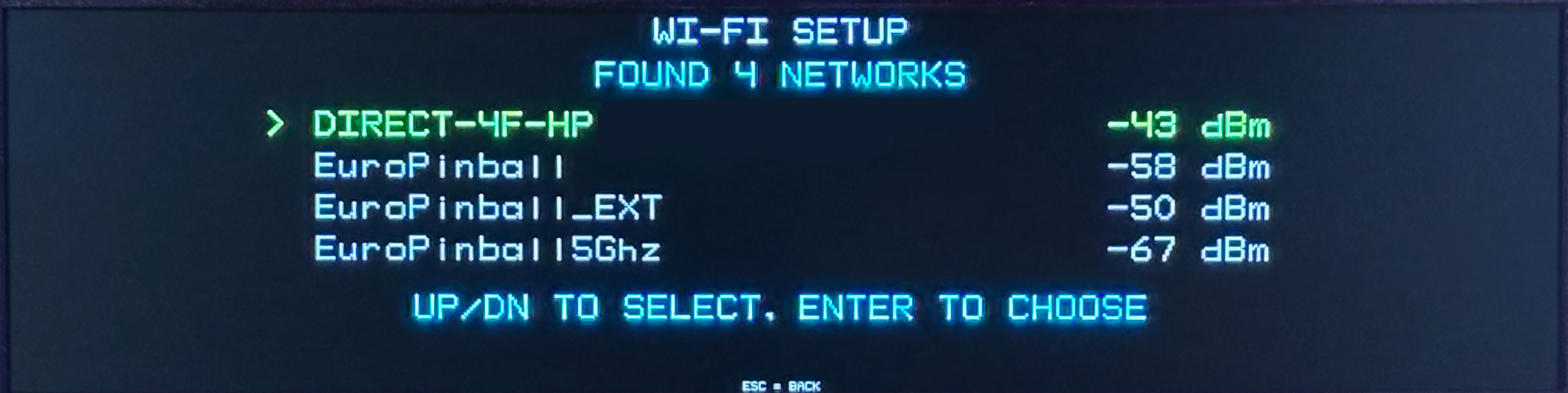
Use the UP/DOWN buttons to select your network, then press ENTER.
The signal strength of each available network is displayed next to its name.
Step 3 – Enter the Wi-Fi Password
After selecting your network, enter the Wi-Fi password using the service buttons:
- Press DOWN to cycle through the available characters.
- Press UP to confirm the selected character and move to the next one.
- When the complete password has been entered, press ENTER to connect.
Step 4 – Confirm the Connection
Once connected, return to:
2026 REMAKE MENU → NETWORK
Then select:
ONLINE UPDATE
The screen will display:
NETWORK: CONNECTED
This confirms that the game is successfully connected to the Internet.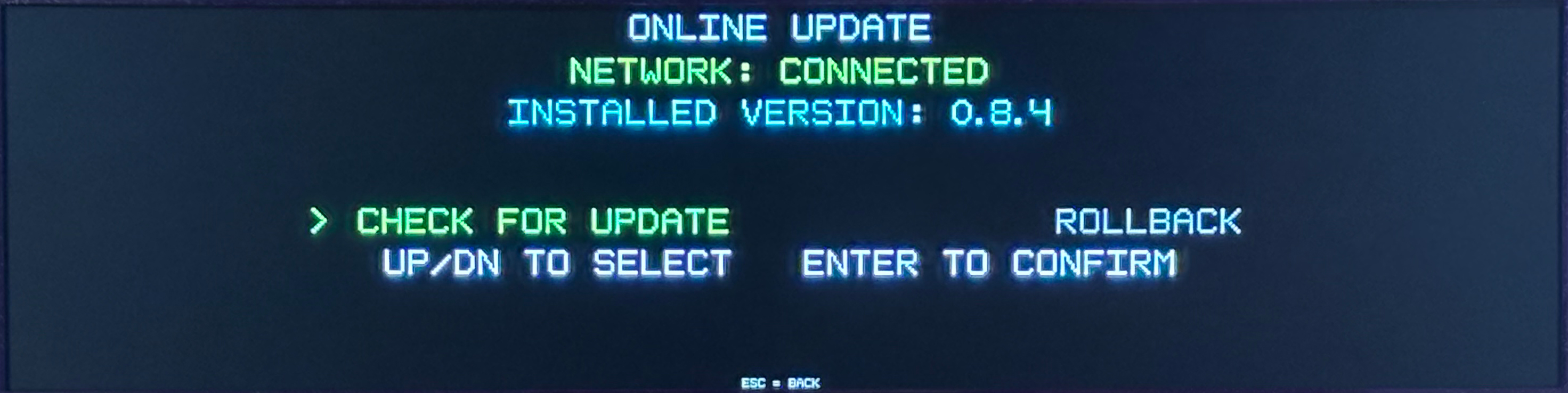
Check the Installed Game Code
On the same ONLINE UPDATE screen, you will see:
INSTALLED VERSION: X.X.X
The number shown next to INSTALLED VERSION is the game code currently installed on your machine.
You do not need to start an update to check the installed version.
Andrea DM
Customer Support Guru
Was this article helpful?
That’s Great!
Thank you for your feedback
Sorry! We couldn't be helpful
Thank you for your feedback
Feedback sent
We appreciate your effort and will try to fix the article