Tales of the Arabian Nights Remake includes integrated Scorbit connectivity, allowing your game to connect to the Scorbit platform and track your games and scores.
This guide explains how to connect your Pedretti game to Scorbit and pair it with your Scorbit account.
For information regarding Scorbit account creation, user profiles, venues, app settings and other Scorbit-specific features, please refer to the official Scorbit website and support documentation.
Scorbit Official Website
Scorbit Support & Documentation
Scorbit also provides its own documentation for the mobile application, including account registration and machine management.
Before You Start
Make sure you have:
- Your Tales of the Arabian Nights Remake powered on.
- An available Internet connection.
- The Scorbit app installed on your smartphone.
- A registered Scorbit account.
The Scorbit app is officially available for both iOS and Android.
Download Scorbit for iOS
Download Scorbit for Android
Need help setting up your Scorbit account?
If you have not yet created your Scorbit account, or need assistance configuring your user profile, collection, venues or other Scorbit settings, please follow the instructions provided directly by Scorbit:
This article focuses specifically on the Pedretti game-side configuration and pairing procedure.
Step 1 – Open the Service Menu
With the game powered on, open the coin door.
The display may show:
COIN DOOR OPEN
INTERLOCK DISABLES
PLAYFIELD HIGH POWER
This is normal.
Use the service buttons located inside the coin door to navigate through the game menus.
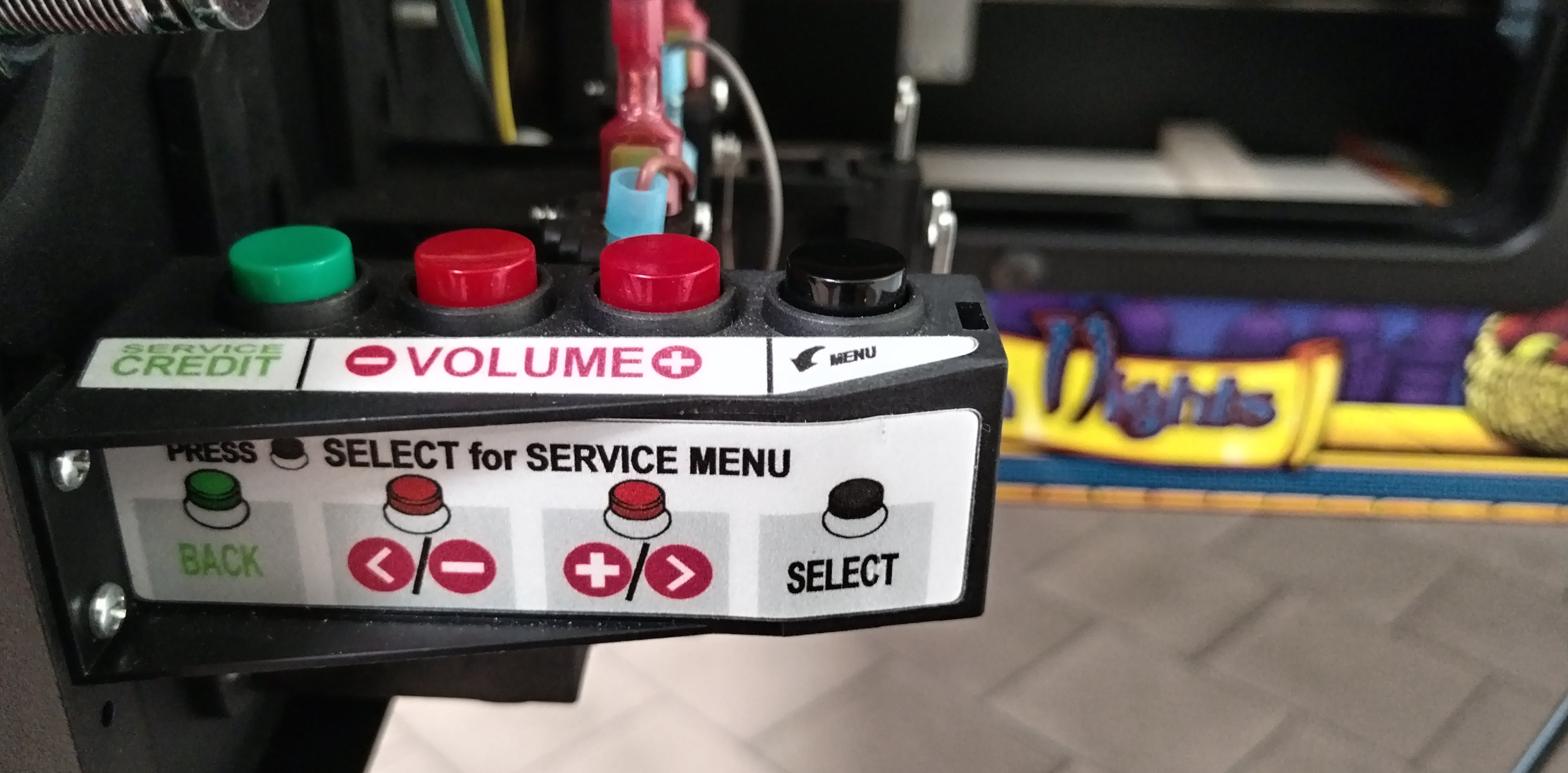
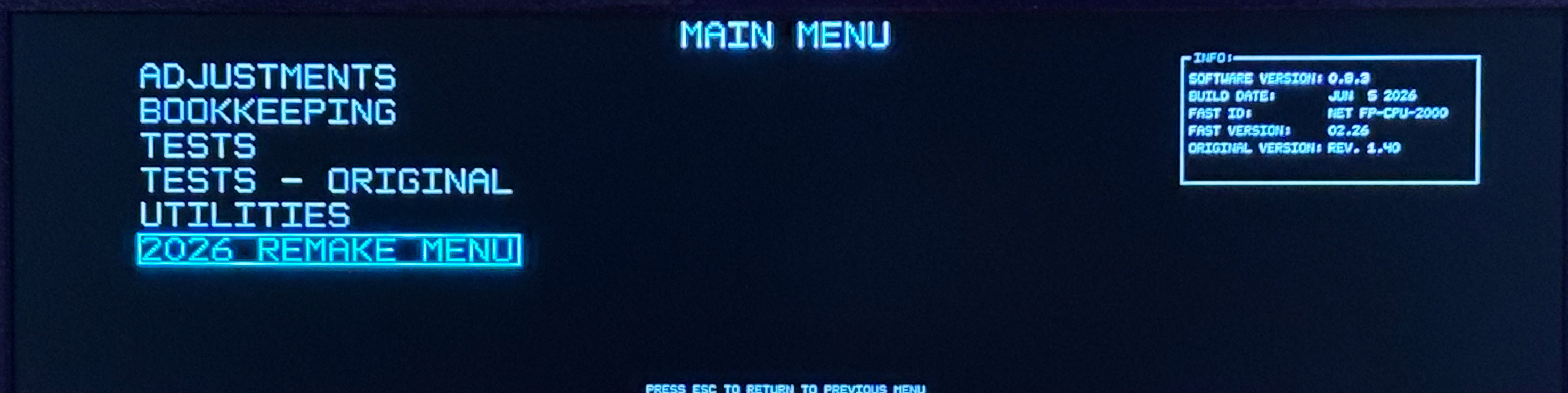
Step 2 – Enter the 2026 Remake Menu
From the MAIN MENU, select:
2026 REMAKE MENU
Press ENTER.
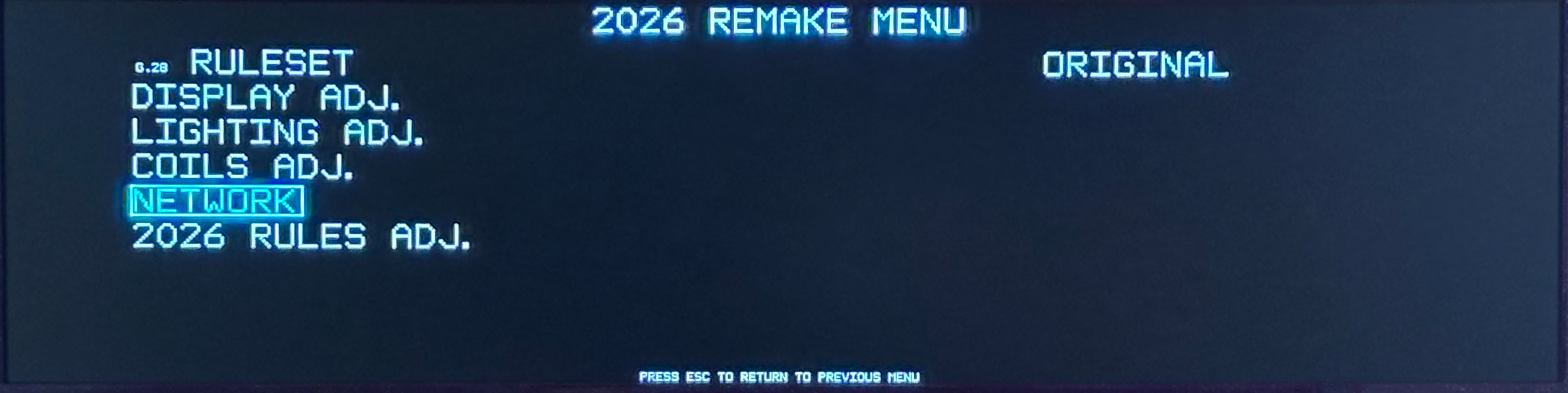
Step 3 – Open the Network Menu
Inside the 2026 REMAKE MENU, select:
NETWORK
Press ENTER.
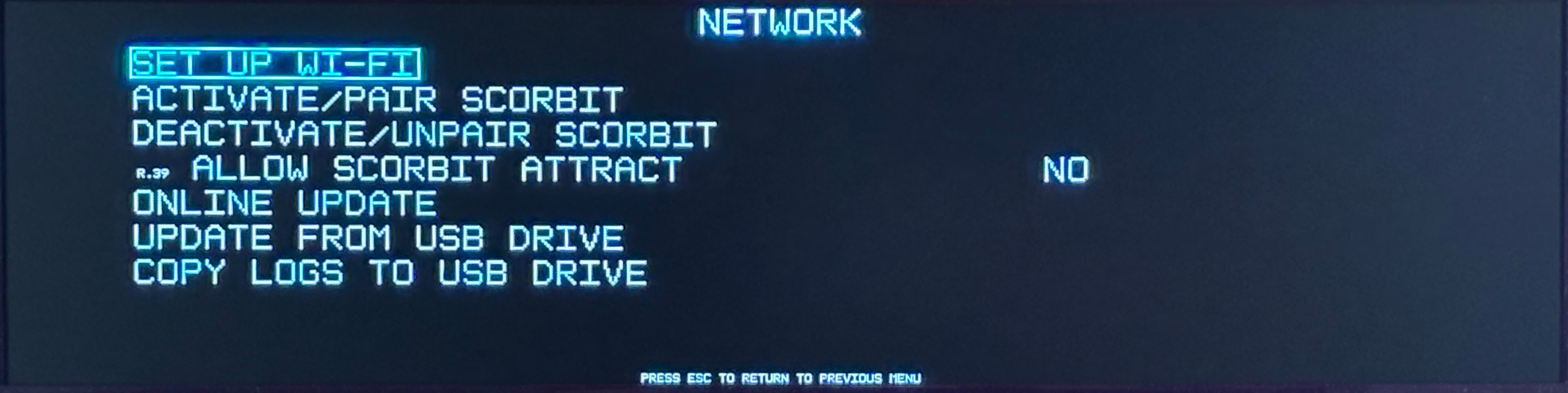
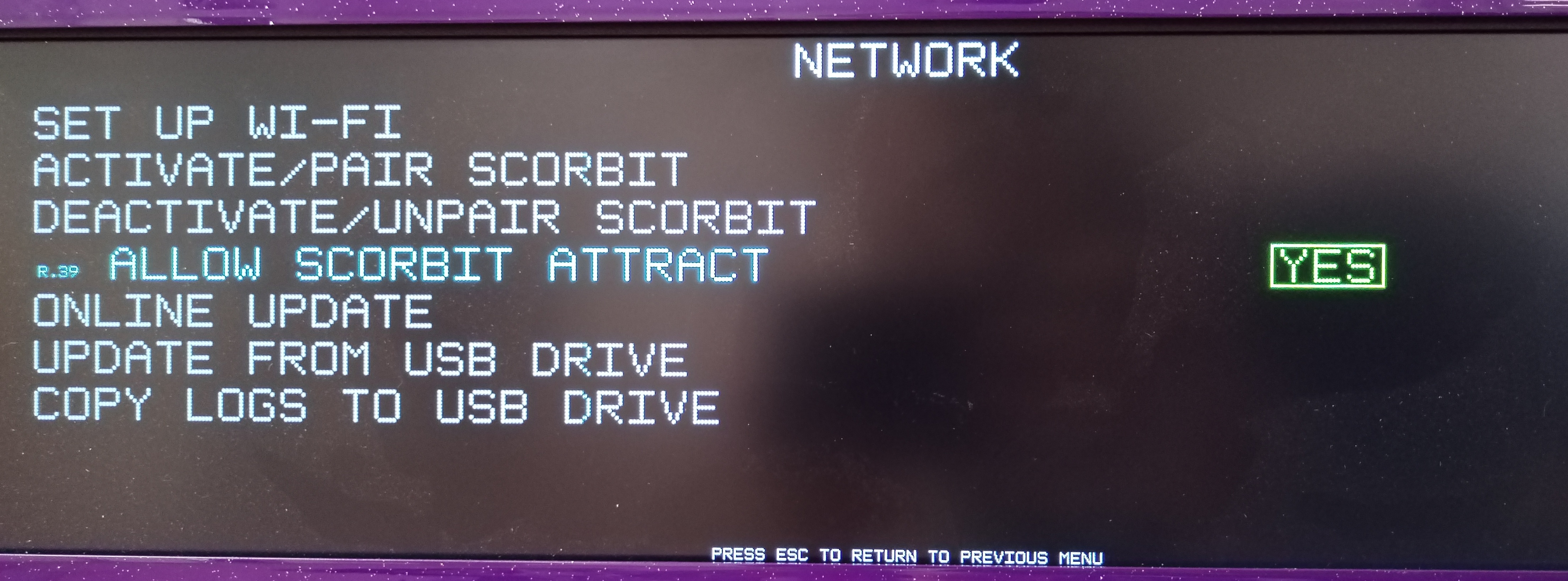
The Network menu includes the connectivity functions used by the game:
- SET UP WI-FI
- ACTIVATE/PAIR SCORBIT
- DEACTIVATE/UNPAIR SCORBIT
- ALLOW SCORBIT ATTRACT
- ONLINE UPDATE
- UPDATE FROM USB DRIVE
- COPY LOGS TO USB DRIVE
Step 4 – Connect the Game to the Internet
If your game is not already connected to the Internet, select:
SET UP WI-FI
The game will scan for available Wi-Fi networks.
Select your network and complete the standard Wi-Fi connection procedure.
If your game is already connected to the Internet, you can skip this step.
For detailed instructions about connecting your Pedretti game to Wi-Fi, please refer to our dedicated How to Connect Your Game to Wi-Fi article.
Step 5 – Enable Scorbit Attract
From the NETWORK menu, select:
ALLOW SCORBIT ATTRACT
Set the option to:
YES
Step 6 – Start Scorbit Pairing on the Game
From the Network menu, select:
ACTIVATE/PAIR SCORBIT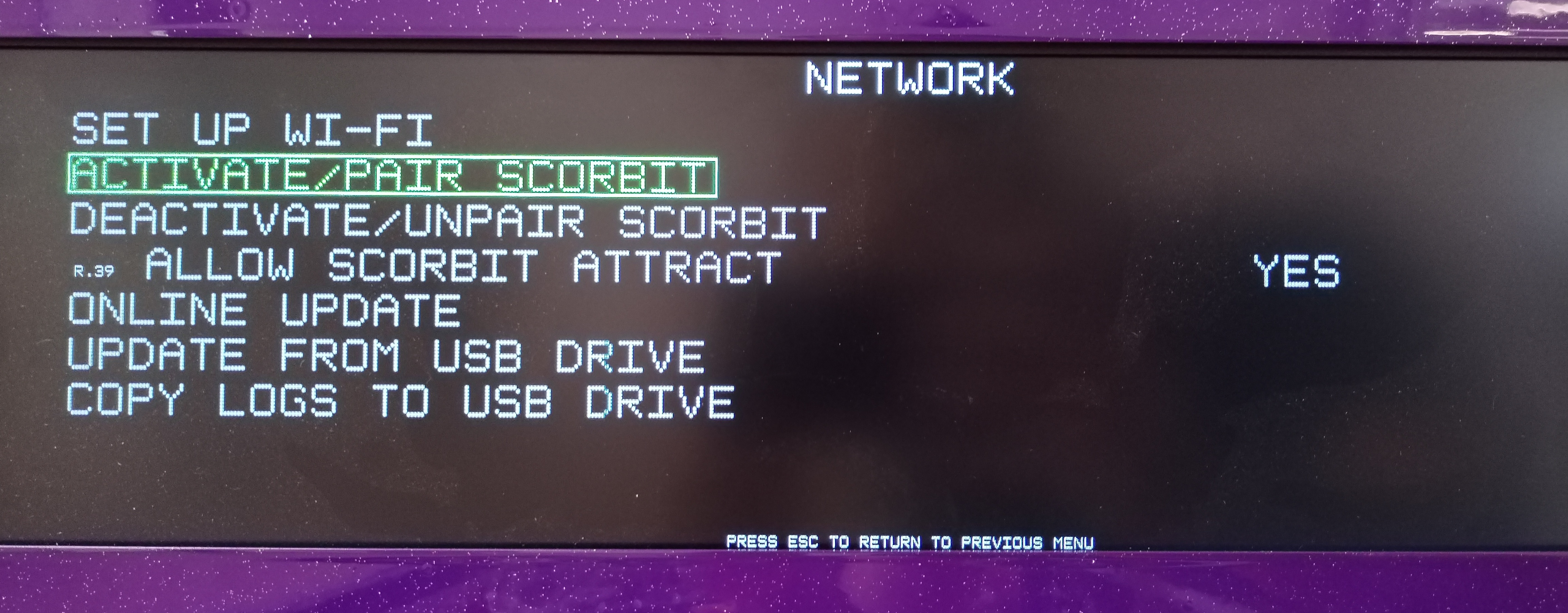
Press ENTER.
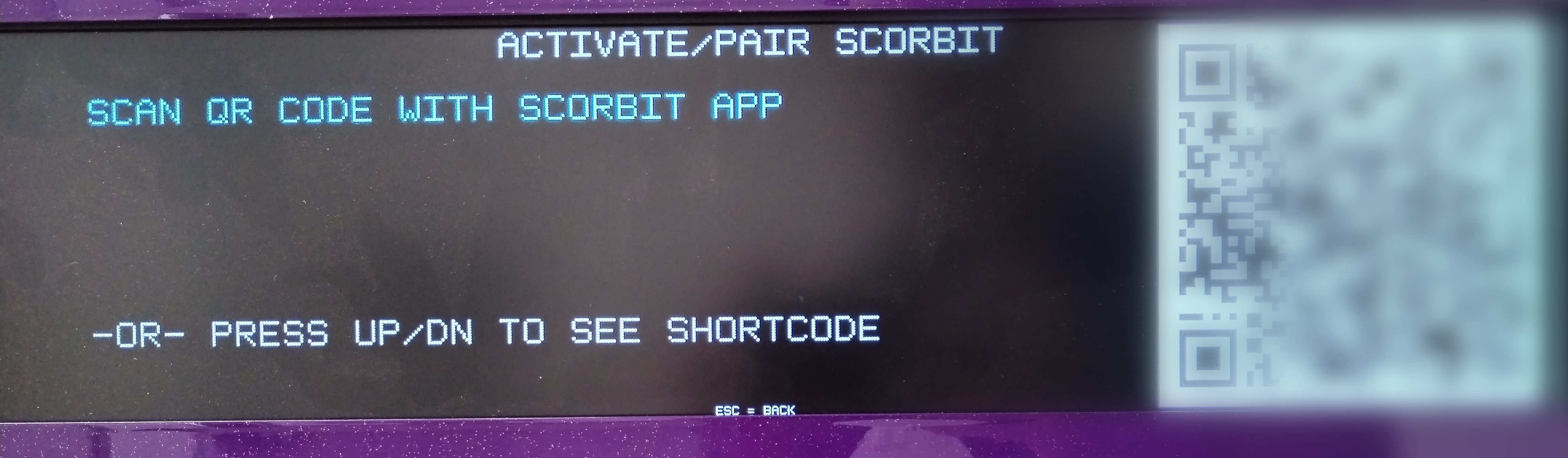
The game will generate a pairing screen containing a QR code.
The display will show:
ACTIVATE/PAIR SCORBIT
SCAN QR CODE WITH SCORBIT APP
Leave this screen open while completing the next steps on your smartphone.
Pairing with a Shortcode
A shortcode can also be used instead of the QR code.
From the pairing screen, press UP or DOWN.
The game will display:
OPEN SCORBIT APP
ACTIVATE SCORBIT
PAIR WITH SHORTCODE
followed by the shortcode generated for your machine.
[PHOTO PLACEHOLDER – Scorbit Shortcode screen]
You can therefore pair the machine using either:
QR CODE
or
SHORTCODE
Step 7 – Open the Scorbit App
Open the Scorbit app on your smartphone and log into your account.
Scorbit's official instructions require users to register or log in to their account before creating and pairing a machine.
If you need assistance with:
- Creating your Scorbit account
- Changing your user profile
- Managing your collection
- Creating or managing Venues
- General Scorbit app settings
please refer directly to:
Step 8 – Go to My Machines
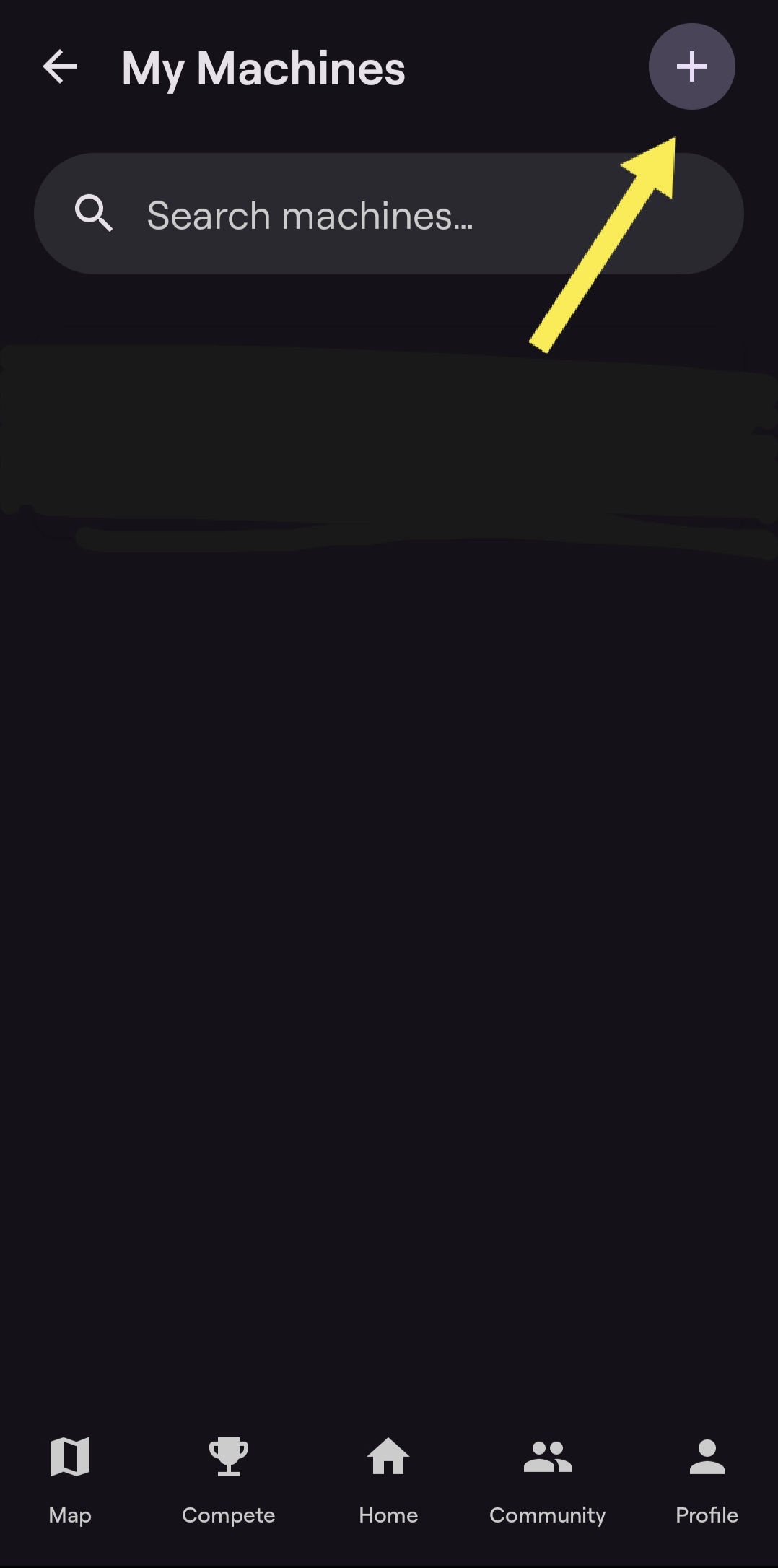
From your Scorbit profile, go to settings and open:
My Machines
Scorbit uses this section to manage the pinball machines associated with your account.
Tap the + button to add a new machine.
Step 9 – Add Your Tales of the Arabian Nights Remake
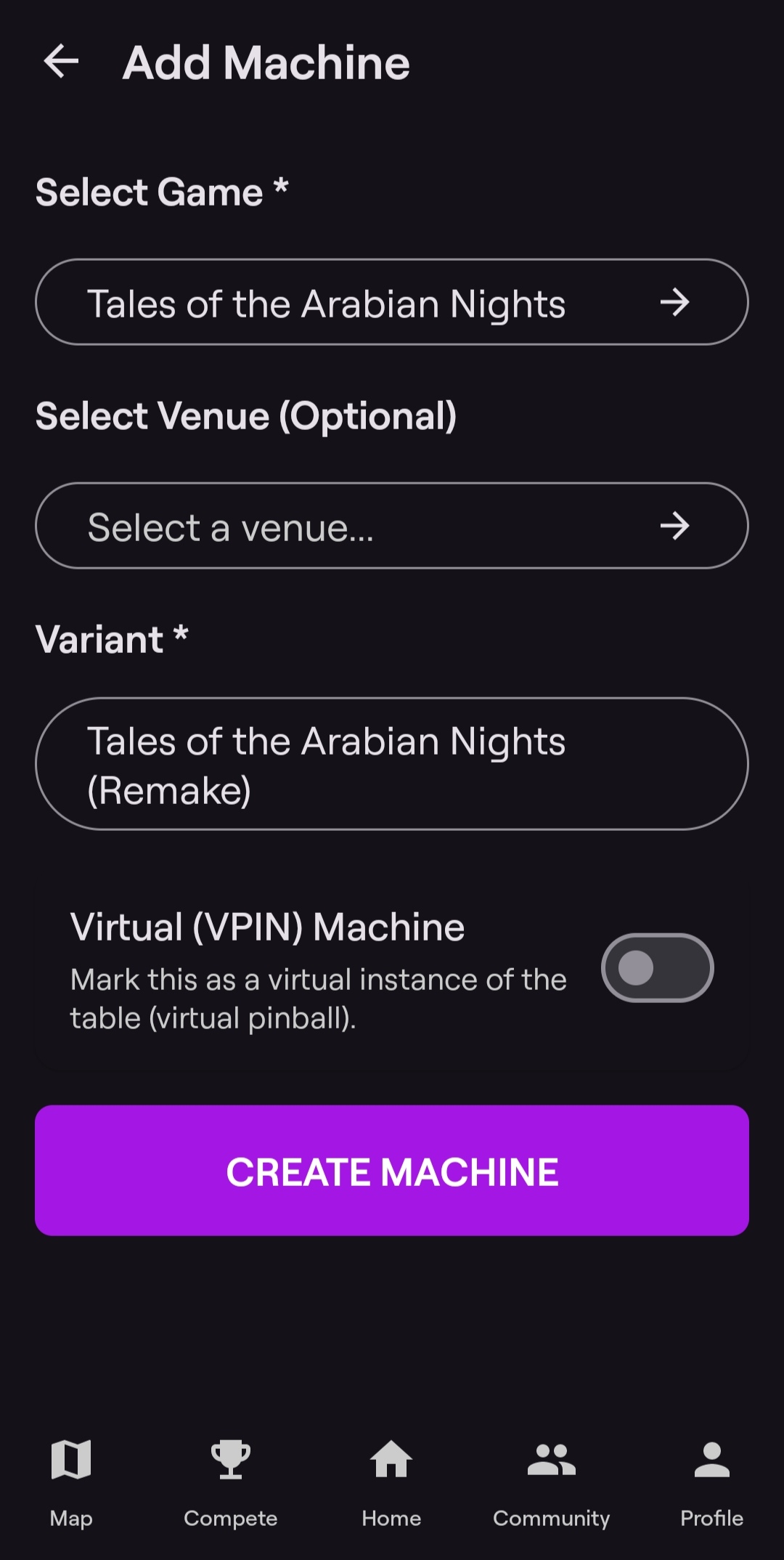
The Add Machine screen will open.
Select Game
Choose:
Tales of the Arabian Nights
Select the Correct Variant
When requested to choose the variant, select:
Tales of the Arabian Nights (Remake)
Scorbit uses variants to differentiate different versions of the same title, so it is important to select the correct machine version.
Venue
Select your Venue if applicable.
For a home machine, follow the Scorbit app instructions for your private collection or Venue settings.
For additional information about Venues and machine management, refer to Scorbit's own documentation.
Virtual / VPIN
This is a physical Pedretti pinball machine, so do not select a virtual/VPIN version.
Scorbit specifically warns users to choose the correct physical or virtual variant when creating a machine.
When all information is correct, tap:
CREATE MACHINE
Step 10 – Open the Machine Details
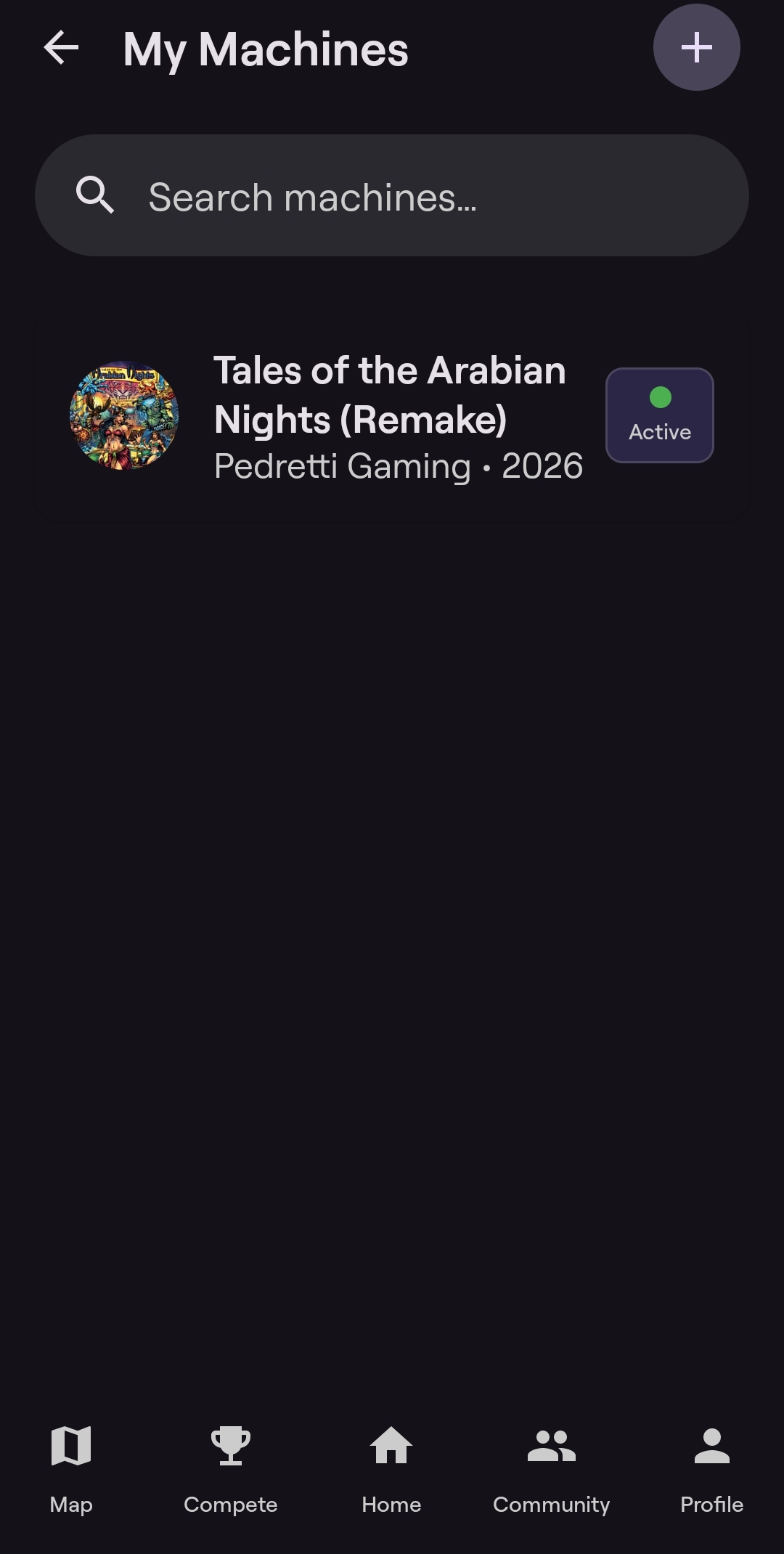
Your newly created Tales of the Arabian Nights Remake will now appear under:
My Machines
Select it.
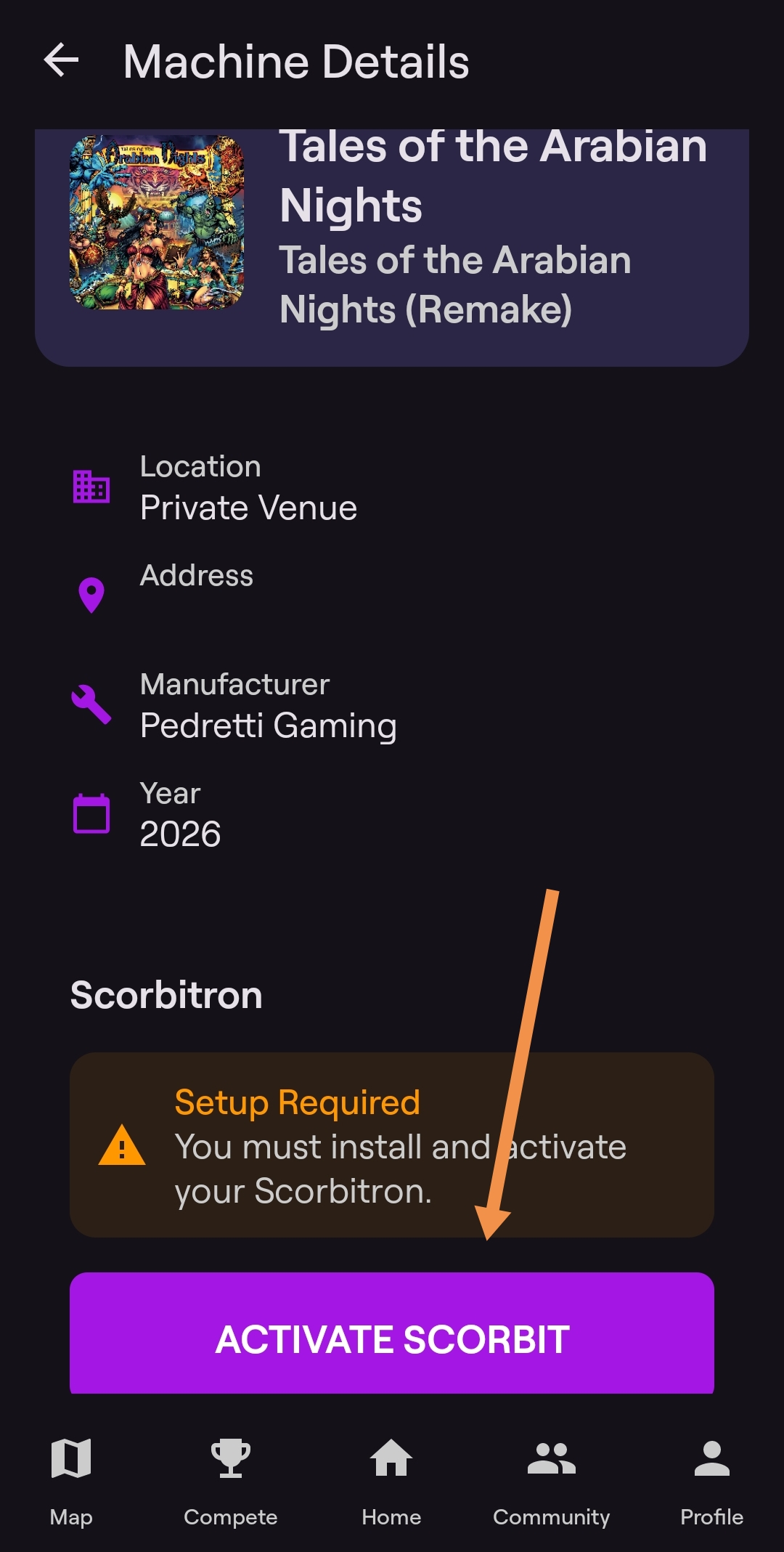
The Machine Details screen will open.
Before the game has been paired, the Scorbit section will indicate:
Setup Required
Select the Scorbit setup/activation option.
Step 11 – Select the Pairing Method
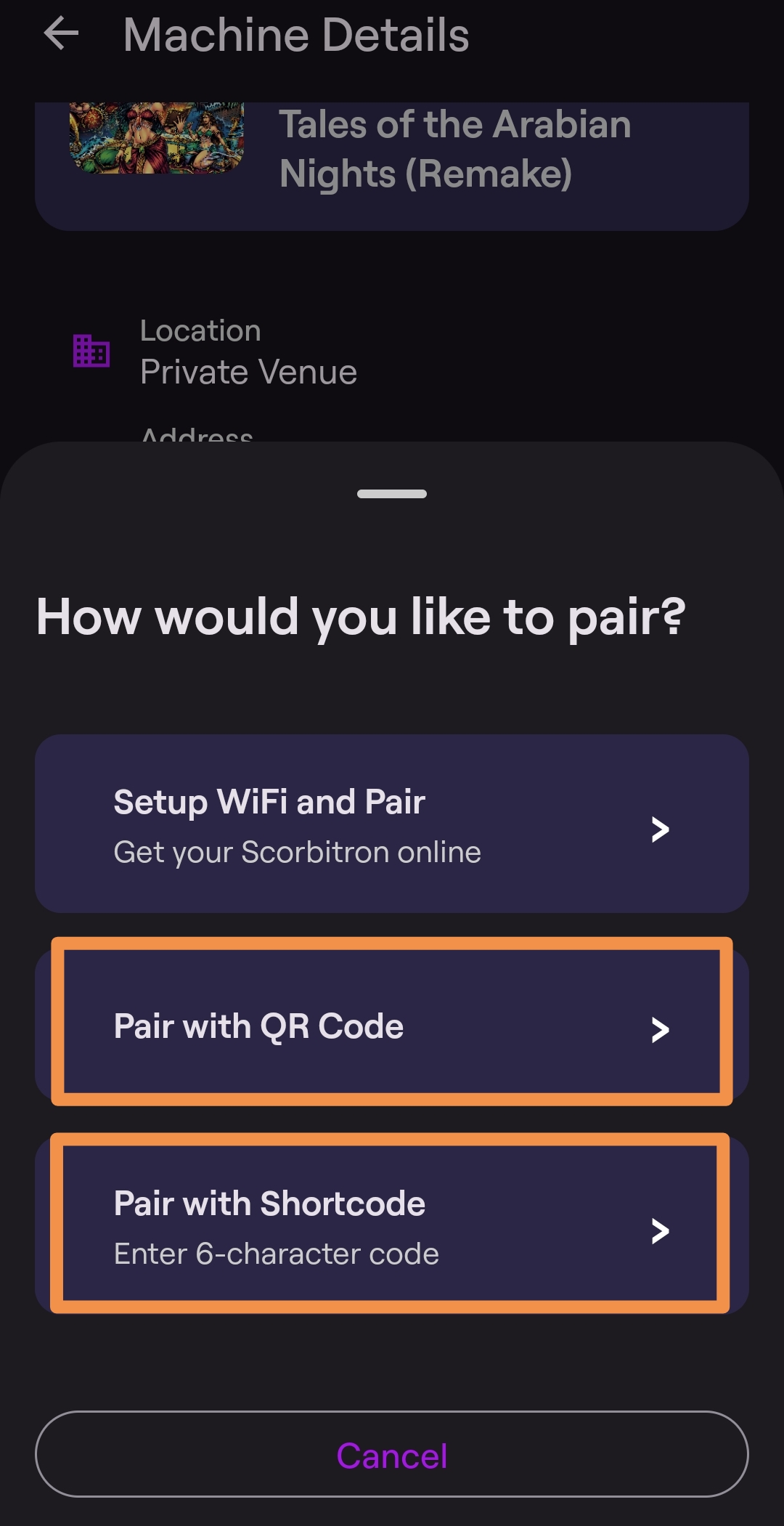
The Scorbit app will ask:
How would you like to pair?
Depending on the current version of the Scorbit app, available options may include:
- Setup WiFi and pair
- Pair with QR Code
- Pair with Shortcode
For Tales of the Arabian Nights Remake, the game's Internet connection is configured directly through the Pedretti game menu, as described earlier in this guide.
To associate the machine with your Scorbit account, use:
Pair with QR Code
or:
Pair with Shortcode
Scorbit's documentation contains instructions for many different pinball platforms and may also describe external Scorbitron hardware. Tales of the Arabian Nights Remake has its Scorbit functionality integrated into the game, so follow the Pedretti-specific game procedure in this article for the machine-side configuration.
Step 12 – Pair Using the QR Code
In the Scorbit app, select:
PAIR WITH QR CODE
Point your smartphone at the QR code displayed on the pinball machine.
The app will read the QR code and associate the physical game with the machine you created in your Scorbit account.
Once completed successfully, the app will confirm that the machine has been connected.
Alternative – Pair Using the Shortcode
If you prefer to use the shortcode:
- Display the shortcode on the pinball machine.
- In the Scorbit app select PAIR WITH SHORTCODE.
- Enter the code shown on the game's display.
- Complete the pairing.
Step 13 – Confirm That Scorbit Is Active
Return to the Machine Details screen.
The Scorbit status should now show that the connection is active.
In the app version demonstrated in this procedure, the confirmation appears as:
SCORBITRON ACTIVE
This confirms that your machine has been successfully paired with your Scorbit account.
Step 14 – Exit the Service Menu
Exit the game menus and close the coin door.
The pinball machine can now return to normal operation.
The pairing remains associated with the machine, so there is no need to repeat the complete pairing procedure each time you play.
Step 15 – Start a Scorbit-Connected Game
Open your paired Tales of the Arabian Nights Remake in the Scorbit app.
Select the player or players who will participate in the game.
When ready, select:
START GAME
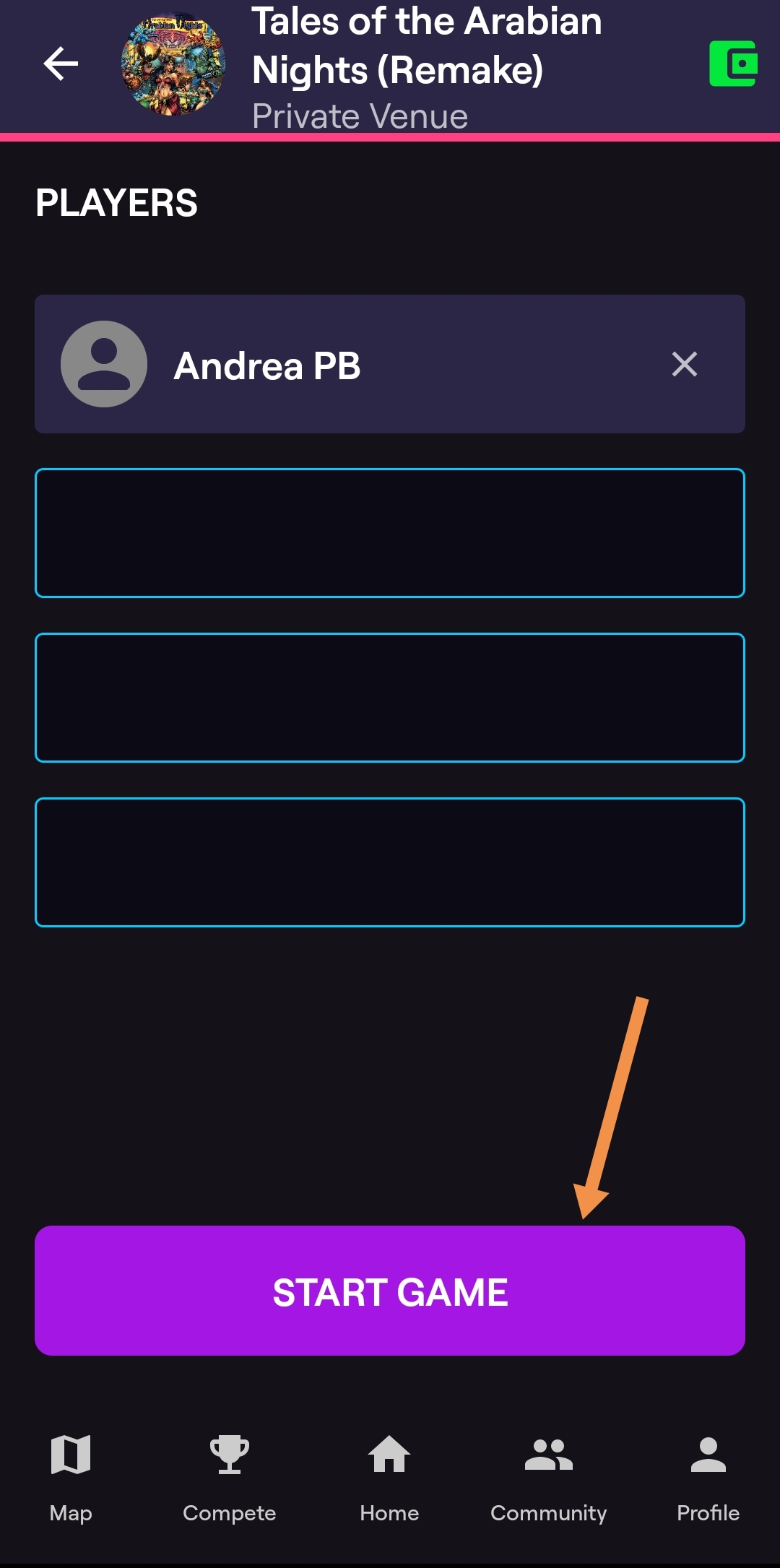
The Scorbit app can then follow the connected game's scoring information.
Scorbit describes its platform as supporting connected play, score tracking, leaderboards and other social/competitive functions.
Setup Complete
Your Tales of the Arabian Nights Remake is now connected to Scorbit.
Complete Setup Flow
Connect the game to Wi-Fi
→ ALLOW SCORBIT ATTRACT: YES
→ ACTIVATE/PAIR SCORBIT
→ Open Scorbit App
→ My Machines
→ Add Tales of the Arabian Nights (Remake)
→ Pair with QR Code or Shortcode
→ Confirm Scorbit is Active
→ Start Game

Need Help with Scorbit?
For questions specifically related to the Scorbit app or platform, including:
- Account creation
- Login problems
- User profile configuration
- My Machines
- Venues
- Player accounts
- Leaderboards
- App functionality
- Scorbit-specific settings
please consult the official Scorbit resources:
Scorbit Application Documentation
Scorbit's support documentation also lists support@scorbit.io as a contact for questions about their platform.
For Pedretti Game-Side Issues
If the issue concerns the Pedretti game itself, its Network menu, Internet connectivity from the game, game software or the integrated Scorbit interface, please open a Pedretti Support ticket.
Andrea DM
Customer Support Guru
Was this article helpful?
That’s Great!
Thank you for your feedback
Sorry! We couldn't be helpful
Thank you for your feedback
Feedback sent
We appreciate your effort and will try to fix the article